How to Store Passwords Safely: What Security Experts Recommend in 2026
The average person manages 168 passwords. Remembering even a fraction of them is impossible, so the method you choose to store them determines whether your accounts stay secure. A dedicated password manager is what security professionals universally recommend, and this guide explains exactly why and how to use one.
What is password storage? Password storage refers to any method used to save and retrieve login credentials. Secure password storage uses strong encryption so that only you can access your credentials: even if a storage system is breached, attackers cannot read the saved passwords without your master key. Insecure methods such as browser autofill without a master password, plain text files, or reusing passwords from memory leave credentials exposed if your device or account is compromised.
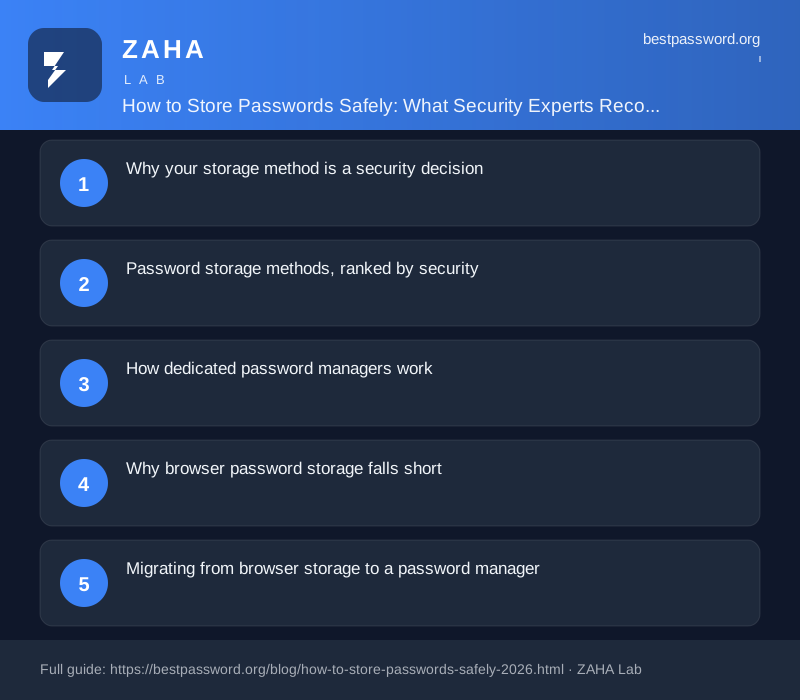
Why your storage method is a security decision
Most people treat password storage as a convenience problem. Security teams treat it as a risk surface. That distinction matters because 86% of data breaches involve the use of stolen or weak passwords, according to the 2024 Verizon Data Breach Investigations Report. Attackers do not crack encryption. They take credentials that were stored carelessly and use them directly.
The second reason to take storage seriously: reuse. When one account's credentials are exposed, attackers test the same email-and-password pair against hundreds of other services in automated attacks known as credential stuffing. If your storage method forces you to reuse passwords because you cannot remember unique ones, every breach anywhere becomes a breach everywhere you used that password.
NIST SP 800-63B, the US federal digital identity standard, states: "Users should use password managers to generate and store unique passwords for each account." That recommendation has appeared in every major version of the standard since 2017. It is the baseline, not an aspiration.
Password storage methods, ranked by security
| Storage Method | Security Level | Primary Risk |
|---|---|---|
| Dedicated password manager (zero-knowledge) | Excellent | Master password loss; service breach mitigated by zero-knowledge design |
| Encrypted offline vault (e.g. KeePassXC) | Good | Device loss; vault not backed up; manual sync across devices |
| Browser-based storage (with sync) | Moderate | Compromised browser account exposes all passwords; no separate encryption layer |
| Paper notebook, locked away | Limited | Physical theft; fire; no backup; hard to generate strong passwords by hand |
| Plain text file or unencrypted spreadsheet | Very Poor | Any malware or sync breach exposes every credential instantly |
| Memory only, using reused passwords | Very Poor | Forces reuse; one breach compromises every account sharing that password |
How dedicated password managers work
A password manager stores your credentials in an encrypted vault. The encryption happens on your device before any data leaves it. The service provider never receives your master password or the decryption keys. This architecture is called zero-knowledge: the provider has no ability to read your saved credentials even if compelled to by law or breached by attackers.
NordPass uses XChaCha20-Poly1305 encryption, the same cipher used in the WireGuard VPN protocol. Vault data is encrypted end-to-end before syncing to the cloud. If NordPass's servers were breached tomorrow, attackers would retrieve ciphertext they cannot decrypt without each user's individual master password.
The practical benefit: you create one strong master password. Every other account gets a 20-character randomly generated password you never have to remember. The manager fills logins automatically. Your memory task reduces to a single credential.
What a good master password looks like
The master password needs to be long, memorable, and not used anywhere else. A four-word passphrase built from uncommon words gives around 55 bits of entropy. Add one number and one symbol and you reach approximately 65 bits: enough to make any current brute-force attack computationally infeasible. Write it down and store that note somewhere physically secure at home, not in a digital file. That physical backup is your recovery option if you forget it.
Why browser password storage falls short
Chrome, Firefox, Safari, and Edge all offer built-in password managers. They are better than nothing, but each has a specific weakness that dedicated tools do not share.
Chrome's password manager ties stored passwords to your Google account. If that Google account is compromised through phishing, a SIM swap, or a weak recovery option, every stored password becomes accessible in the same moment. There is no separate encryption layer; the Google account credential is the access control.
Safari Keychain is encrypted and reasonably secure in isolation, but it is Apple-platform only. Passwords do not travel with you to Windows, Android, or any non-Apple device. The NCSC's 2025 guidance on password managers acknowledges browser-integrated tools as "a reasonable starting point" but notes that "dedicated tools offer better compartmentalisation and audit capabilities."
The most common vulnerability specific to browser storage is infostealer malware. Infostealers, a category of credential-stealing software that grew by 800% in credential volume between 2022 and 2024 according to Group-IB threat reporting, specifically target browser credential stores. They extract the encrypted database file and the decryption keys from the same device in a single operation. A dedicated password manager running as a separate process is harder to target and typically uses memory-protection techniques that browsers do not implement.
Migrating from browser storage to a password manager
The migration takes 20 to 30 minutes for most users. It is a one-time effort.
- Export from your browser. In Chrome, open Settings, then Password Manager, then the three-dot menu, and select "Export passwords." Safari exports through System Settings under Passwords. The output is a CSV file.
- Import into your password manager. NordPass accepts CSV imports from Chrome, Firefox, Safari, Edge, and 1Password directly. The importer maps fields automatically.
- Delete the exported CSV immediately. The file is plain text with every password readable. Delete it from your Downloads folder and empty the trash before you do anything else.
- Disable browser password saving. Turn off "Offer to save passwords" in browser settings so the browser stops competing with your manager. In Chrome: Settings, then Password Manager, then toggle "Offer to save passwords" off.
- Test a few logins. Log out of two or three accounts and confirm the manager fills credentials correctly. Check that entries containing special characters imported without corruption.
What to do if you cannot use a password manager
Some organisations block third-party software on managed devices. Some users have accessibility constraints. These fallback options are listed in order of security:
Encrypted offline vault. KeePassXC is open-source, free, and independently audited. The vault file uses AES-256 encryption. Store it on a USB drive, back it up to a second encrypted drive, and never save it to a shared cloud service without additional encryption. The approach is inconvenient but genuinely secure against remote attack.
Paper notebook, stored securely. A physical notebook in a locked drawer is immune to remote attack. Its weaknesses are physical: theft, fire, and no ability to auto-fill. Use the password generator to create random passwords, copy them to paper, and never store the notebook near the devices it covers. This works for people with very few accounts that rarely change.
An unencrypted text file, a spreadsheet saved to Google Drive without separate encryption, and credentials written on sticky notes visible from a desk are not acceptable under any threat model. CISA's 2024 secure password guidance identifies unencrypted local storage as a high-risk practice on par with publicly sharing credentials.
A five-question audit of your current storage method
Run through these questions for the method you use now. A "no" answer identifies a gap worth closing.
- Are your stored passwords encrypted with a key you control, separate from your device login?
- Would an attacker who compromised your email account also gain access to your stored passwords?
- Do you have a backup of your vault or credentials that would survive total device loss?
- Is every stored password unique: no password used across more than one account?
- If your password manager provider shut down tomorrow, could you still export and access your vault?
A zero-knowledge password manager with a strong, memorised master password and an offline backup answers all five questions correctly. That is the practical standard.
The complete answer in one paragraph
Use a dedicated, zero-knowledge password manager. Set a master password you have memorised and written down somewhere physically secure. Generate a unique random password for every account using the built-in generator. Enable an authenticator app as a second factor on the manager itself. Every major security authority, from NIST to NCSC to CISA, gives the same advice. The tools that implement it correctly are widely available, many for free, and the setup takes less than an hour.